
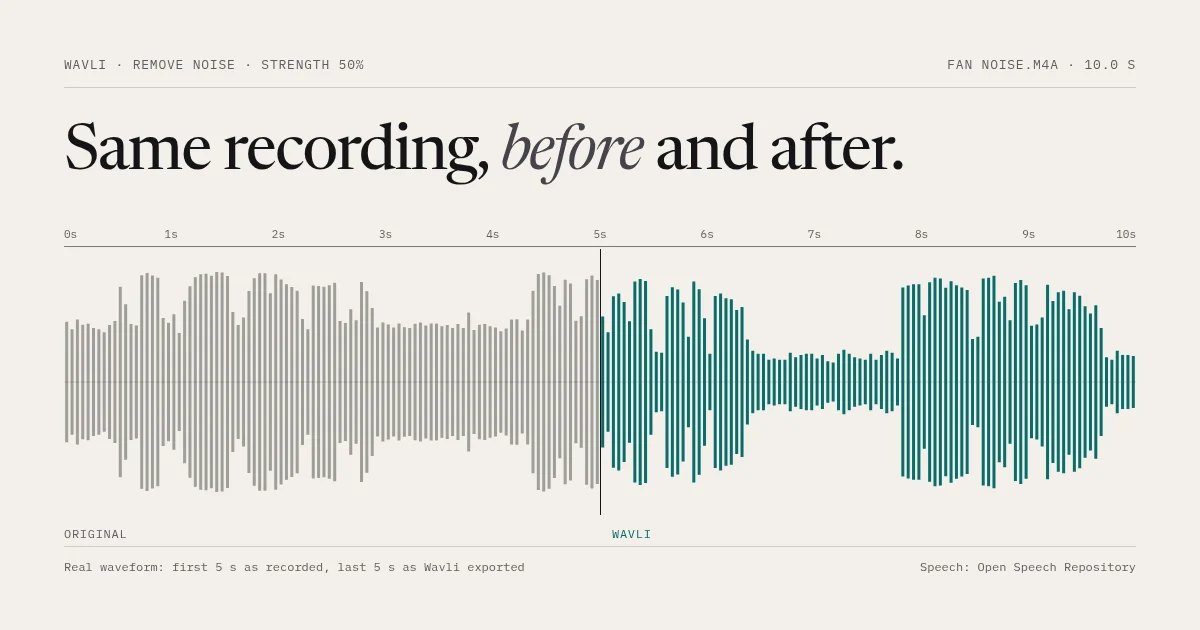
The free way to remove background noise on iPhone depends on what you’re cleaning: Voice Memos has Enhance Recording, and Photos has Audio Mix for videos shot on iPhone 16 or later. For any other audio file, Wavli removes steady background noise on your iPhone without uploading the file. Every tool and preview is free, and you get 3 free exports.
Below: what each free option can and can’t do, the Wavli steps, and what’s actually free.
Free built-in options (try these first)
Voice memos: Enhance Recording
In Voice Memos, open a recording, tap Options, and turn on Enhance Recording. Apple says it reduces “background noise and echo when you play Mono and Stereo recordings.”
The catch: Apple also says playback settings don’t “affect the recording itself”, so it may not help with a file you send or upload. The full walkthrough, and how to check whether a shared copy keeps the effect, is in how to remove background noise from a voice memo.
Videos from iPhone 16 or later: Audio Mix
If you recorded a video with Spatial Audio on iPhone 16 or later, open it in Photos, tap Edit, then Audio Mix, and choose Studio (“reduce background sounds and reverb”) or In-Frame (reduce sounds from sources not visible in the frame). Drag the slider to set how strong it is. This only works on videos, and only on supported models. There’s more in removing background noise from iPhone video.
Your next recording: Voice Isolation
On iOS 26 and later, Apple says you can use Voice Isolation in recording apps such as Voice Memos: during the recording, open Control Center, tap the app’s controls, and select Voice Isolation. It filters while you record, so it can’t fix a file you already have.
Why “online” noise removers mean uploading your file
A website that removes noise has to receive your audio to process it. That’s fine for a podcast intro. It’s a different choice for a medical appointment, a client call, or a family recording. Wavli runs the noise removal on your iPhone, and the audio isn’t uploaded.
Remove background noise from any audio file with Wavli
Wavli’s Remove Noise is one automatic cleanup with a Strength slider. It’s built for steady noise: fans, air conditioning, computer noise, constant room hiss. Wavli works on iOS 15 or later.
-
Get the file into Wavli
Open Wavli and tap “Choose a recording” to pick one file from the Files app. Or, from another app, tap Share and tap Wavli in the share sheet. (On iOS 26 the share sheet shows it as “Wavli”. The extension is called Save to Wavli, which is the name you may see on other iOS versions.) The file then appears on a “Ready from Share” card on Wavli’s Home screen; tap “Choose what to do” on that card. Wavli opens M4A, MP3, WAV, AIFF, and CAF audio, plus MOV and MP4 video. Opus and Ogg files, the format some messaging apps use for voice notes, aren’t supported, so convert those to M4A or MP3 with another app first.
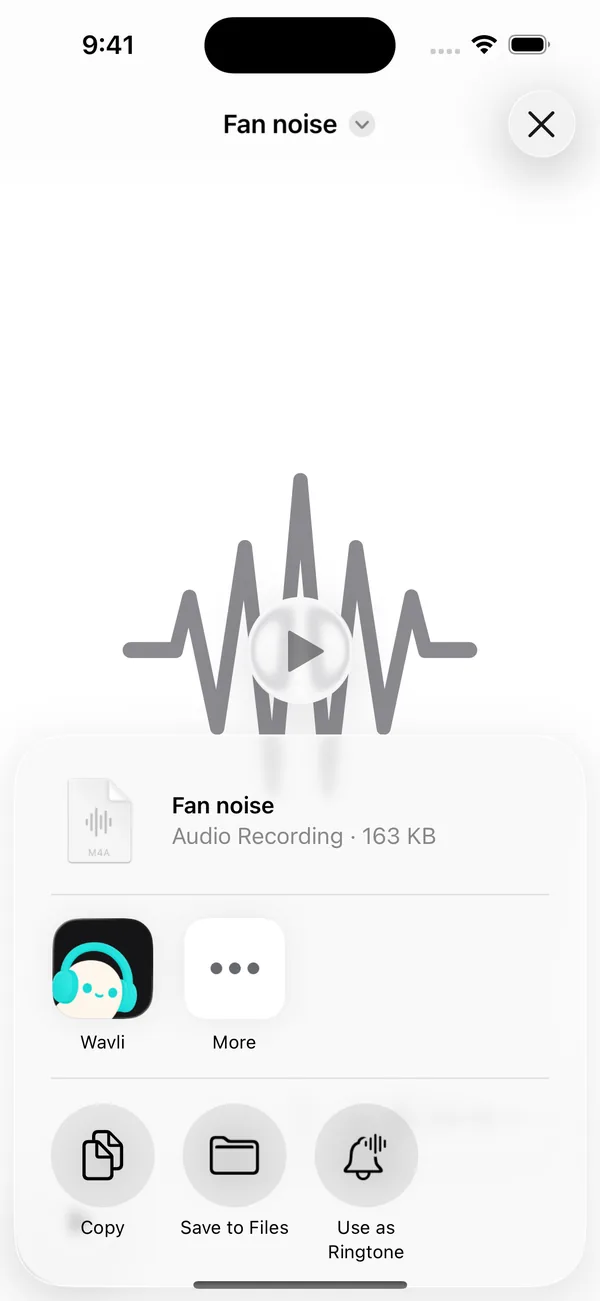
In the Files share sheet, tap Wavli. Or pick the file inside Wavli. -
Choose Remove background noise
Whichever way you brought the file in, Wavli asks “What would you like to change?”. Tap “Remove background noise”. The Remove Noise tool opens.
-
Set the Strength, output format, and preview
The Strength slider starts at 50%, the middle. Tap “Preview 8 seconds” and listen, with headphones if you have them. If the voice sounds thin or processed, move toward Natural. If the noise is still obvious, move toward Strong. Then preview again.
On the same screen, the Output format buttons set the file type you’ll get. Auto is selected by default, with the note “Keeps video. Audio recordings become M4A.” The other buttons:
- M4A: small and widely supported; the same as Auto for audio.
- MP3: pick this if a website or app specifically asks for MP3.
- WAV or AIFF: uncompressed, for editing the file further in another app. Expect much larger files.
Below the format buttons, Encoding quality (Standard, High, Balanced, Small) controls the quality and file size of compressed formats. Wavli notes that “WAV and AIFF use 16-bit audio.”
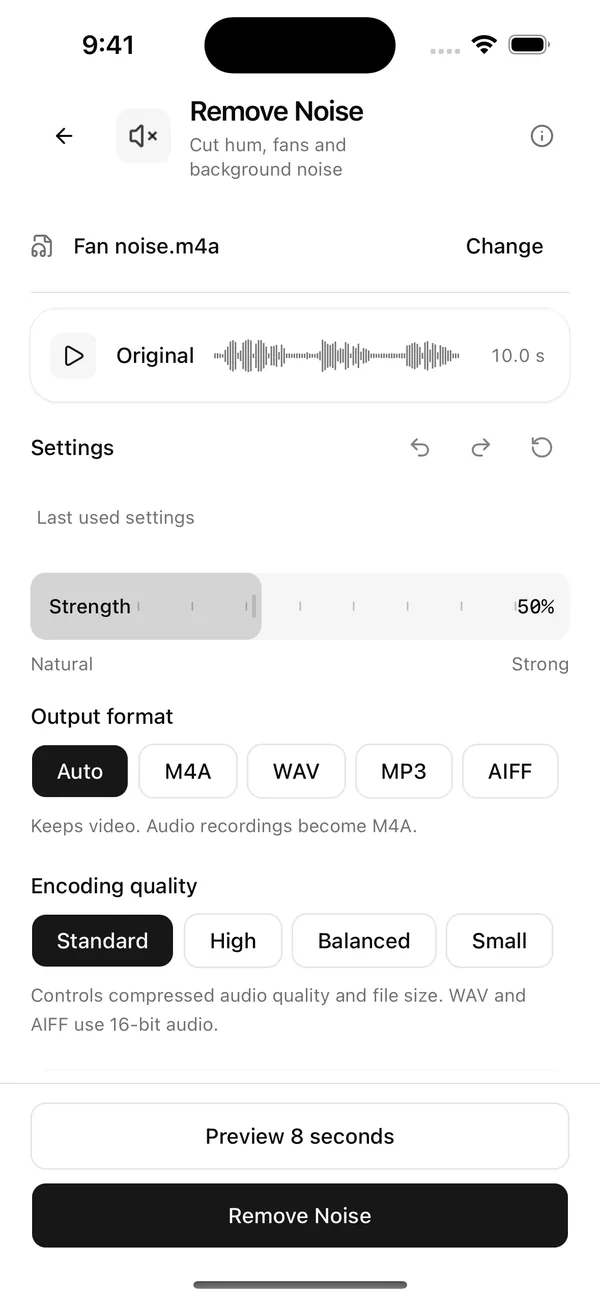
Strength and Output format are on the same screen. Previews are free, so try a few settings. -
Remove the noise
Tap Remove Noise. The result screen opens with the heading “YOUR RECORDING IS READY” and Before and After players.
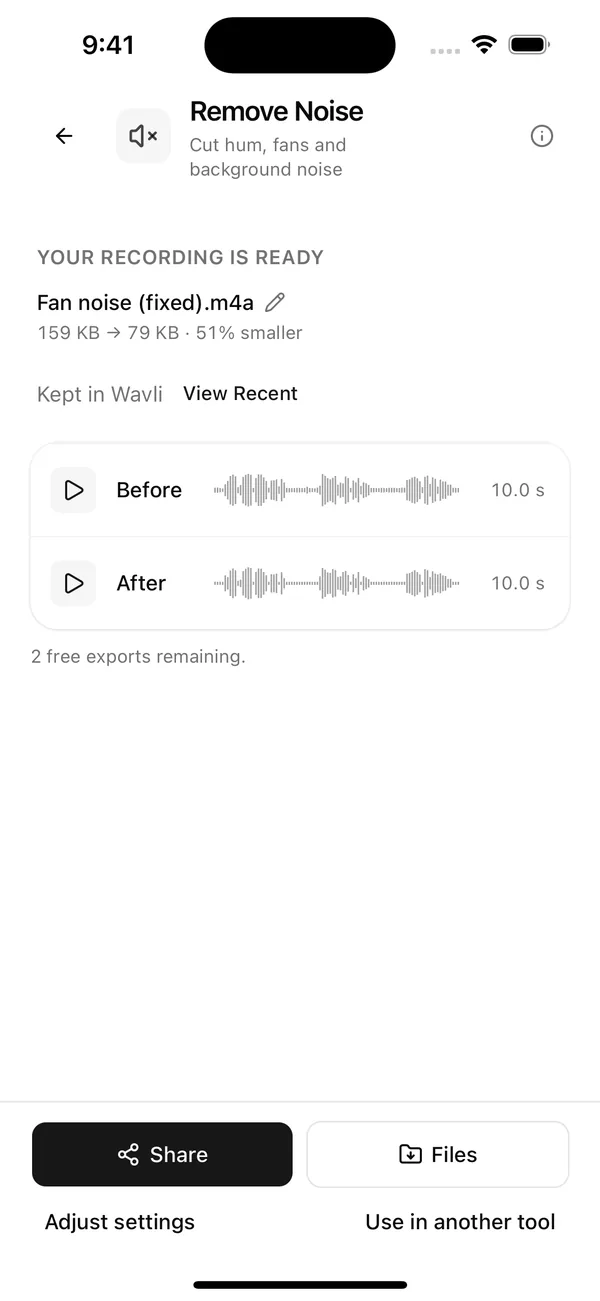
Compare Before and After before saving.
Check the result and save it
Not happy with the After version? Tap Adjust settings, change the Strength, and run it again. Previews and re-runs don’t cost anything until you export.
-
Save or share the file
Tap Files to save a copy, or Share to send it to another app. The result is also kept in Wavli, and you can find it again under “View Recent”.
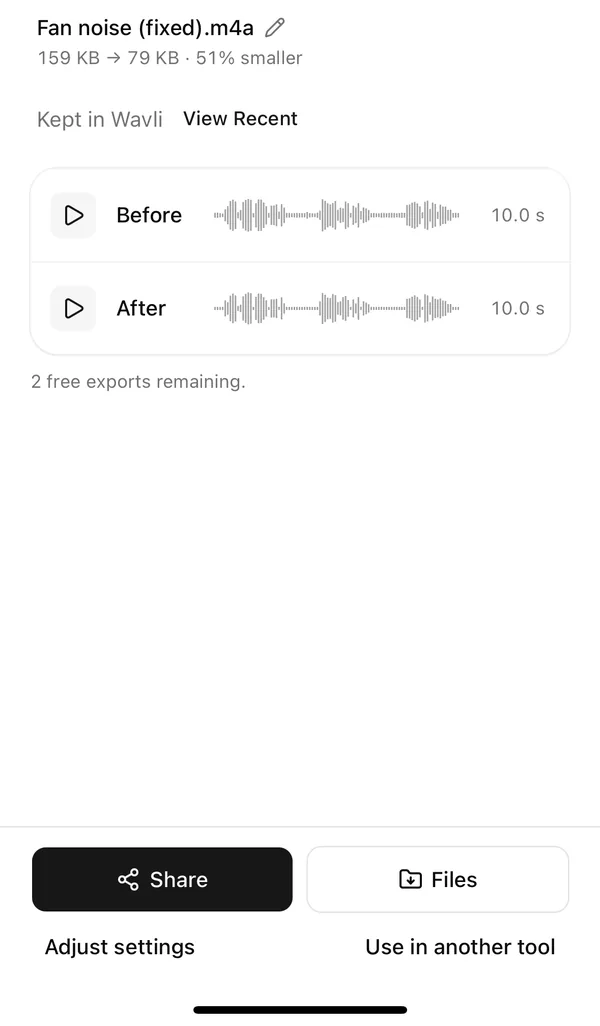
The size line shows the original and cleaned file sizes.
The result screen shows the size before and after. For our 10-second test clip, cleaned with Auto (M4A), it read “159 KB → 79 KB · 51% smaller”. The cleaned file isn’t always smaller: WAV and AIFF are uncompressed, so they’re usually much larger than an M4A or MP3 original. If you need a small file, use Auto (M4A) or MP3.
To run a second tool on the cleaned file, such as Remove Hum, tap Use in another tool.
A · Before
B · After
The speech in this demo is a telephone-quality recording, so it sounds narrow before and after. The fan-like noise was added on purpose. Listen for how much of the steady noise drops away.
What’s actually free in Wavli
- Free: every tool, and every 8-second preview.
- Free: 3 exports per device. Exporting one of those recordings again doesn’t use another.
- Needs Wavli Pro: exports after the first 3. The App Store listing shows the current options.
If you only need to clean one or two files, the free exports cover it. If you clean audio every week, that’s what Pro is for.
Does it work offline?
The noise removal runs on the iPhone itself, so it doesn’t need a connection to process audio. Buying or restoring Wavli Pro does need a connection.
Automating cleanup with Shortcuts
On iOS 16 and later, Wavli adds a “Clean Recording” action to the Shortcuts app. It is not the same as Remove Noise. It’s an automatic cleanup that can trim silent edges, shorten long pauses, reduce noise when it detects enough of it (at an automatic amount, not your Strength setting), and raise the loudness of speech. It never removes hum, and it takes one audio file at a time. Video isn’t accepted.
The action opens Wavli while it runs and hands a temporary M4A back to your shortcut, named like “Interview (fixed).m4a”. The file isn’t saved anywhere on its own, so add a step such as Save File to keep it. Each successful run uses one of your free exports.
What Remove Noise won’t fix
- Echo or room reverb. Wavli has no echo removal.
- Clicks, pops, crackle. Remove Noise only targets steady noise.
- Other people talking. Background voices are speech, so they generally stay.
- Electrical hum or buzz. Use Wavli’s Remove Hum instead: how to remove hum or buzz from a recording.
- “Static.” If it’s steady hiss, Remove Noise handles it. If it crackles, it won’t. See how to remove static from a voice memo.
FAQ
How can I remove background noise from audio for free on iPhone?
For voice memos, turn on Enhance Recording in Voice Memos. For videos recorded with Spatial Audio on iPhone 16 or later, use Audio Mix in Photos. For any other audio file, Wavli lets you try every tool and preview for free, and each device gets 3 free exports.
Can I remove background noise from audio without uploading it?
Yes. Wavli processes audio on your iPhone, so the file isn't sent to a server. Online noise removers generally have to receive your file to process it.
Which audio files can Wavli open?
Wavli opens M4A, MP3, WAV, AIFF, and CAF audio, plus MOV and MP4 video. Opus and Ogg voice notes from messaging apps aren't supported, so convert them to M4A or MP3 first. Pick a file from the Files app, or send it from another app by tapping Wavli in the share sheet.
Does Wavli remove every kind of noise?
No. Remove Noise is built for steady noise like fans, air conditioning, and room hiss. It doesn't remove echo, clicks, or crackle. For electrical hum, Wavli has a separate Remove Hum tool.
Sources
- [1]Apple Support: Play a recording in Voice Memos on iPhone
- [2]Apple Support: Trim video length, adjust speed, and edit audio on iPhone
- [3]Apple Support: Use Voice Isolation, Wide Spectrum, or Automatic Mic Mode on your iPhone and iPad
- [4]Apple Support: Export a Voice Memos recording to Files on iPhone